Did you see any garbled text when importing a CSV file into Excel? We’ve all been there—you double-click on a CSV file, expecting everything to look perfect, but instead, you get a jumbled mess of garbled text. This often happens when the file contains non-alphabet characters, like Asian letters (such as Japanese, Chinese, or Korean).
But don't worry, there's an easy fix for that😉Don’t worry; it’s a common issue, and there’s an easy fix! Let me walk you through the steps to open a CSV file the right way.
For Mac Users:
- Navigate to File > Import > CSV file.
First things first, resist the urge to simply double-click the file. Instead, open your spreadsheet software (like Excel) and head to the File menu. From there, choose Import (not Open—this is key!).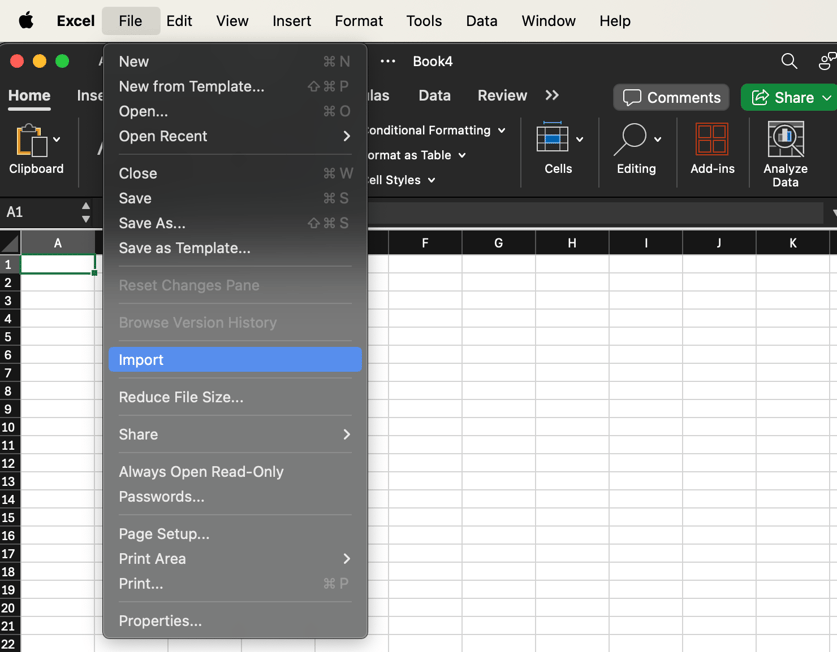
- Set the File Origin: Choose Unicode (UTF-8).
Here’s the magic part! You’ll need to set the File Origin correctly. Usually, Unicode (UTF-8) does the trick for most files. But if you notice that some text is still garbled, don’t panic—try experimenting with other related types until it looks just right. - Preview: Check the "Preview of selected data" to see if the characters display correctly.
If the text still looks wrong, try experimenting with other Unicode options or encodings specific to the language used in your file. The preview option will help you determine which setting works best for your CSV file.
And that's it! I hopethis helps!😊